> ## Documentation Index
> Fetch the complete documentation index at: https://protegee.ai/docs/llms.txt
> Use this file to discover all available pages before exploring further.
# Retell
> Integration steps for Retell
## Integration
### Collecting Payment
In Retell, in order to get started, you'll need to create a new state. This state will be responsible for making the webhook to Protegee and transfering the caller over.
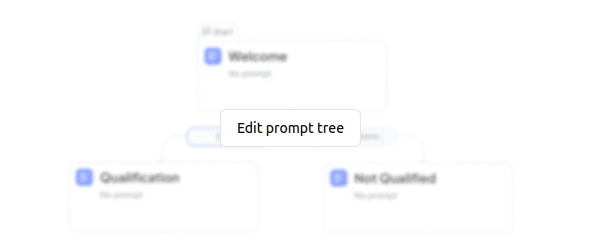
Inside your agent, start by going over to `Edit Prompt Tree`. Should look something like:
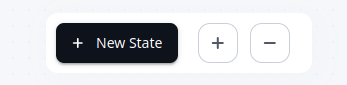
 Then, go to the bottom and create a `New State`:
 Then go ahead and click on this new state. You should see a menu bar pop up on the right:
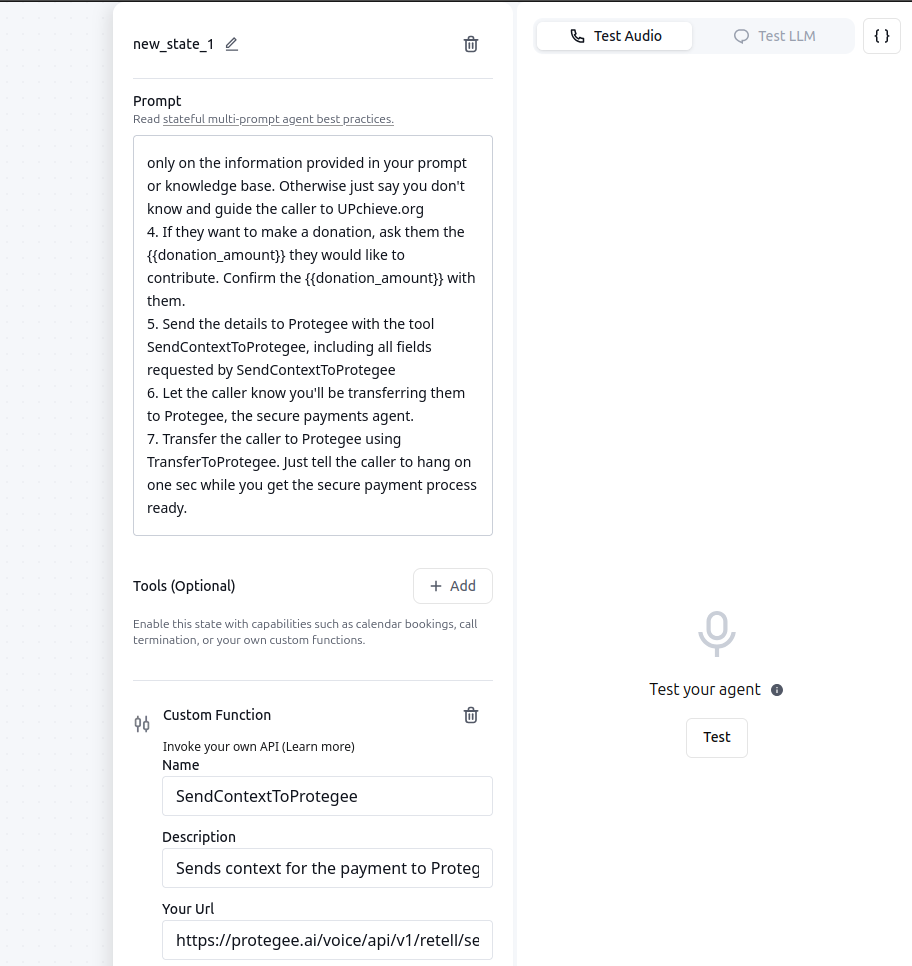 In here we will do the following:
1. Update the `Custom Function`
```
Name: SendContextToProtegee
Description: Sends context for the payment to Protegee
Your Url: https://protegee.ai/voice/api/v1/retell/set-context?api_token=
Parameters:
{
"type": "object",
"properties": {
"description": {
"type": "string",
"description": "just return 'donation' without quotes"
},
"callback": {
"type": "string",
"description": "just return '' without quotes"
},
"persona": {
"type": "string",
"description": "just return 'english-jessica' without quotes"
},
"price": {
"type": "string",
"description": "{{donation_amount}}, formatted with no dollar sign and 2 decimal places"
},
"vendor": {
"type": "string",
"description": "just return 'example-co' without quotes"
},
"email": {
"type": "string",
"description": "test_account@example.com"
},
"full_name": {
"type": "string",
"description": "John Doe"
},
"memory": {
"type": "string",
"description": ""
}
},
"required": [
"description",
"callback",
"persona",
"price",
"vendor",
"email",
"full_name",
"memory"
]
}
```
Lastly, make sure you also set the following:
In here we will do the following:
1. Update the `Custom Function`
```
Name: SendContextToProtegee
Description: Sends context for the payment to Protegee
Your Url: https://protegee.ai/voice/api/v1/retell/set-context?api_token=
Parameters:
{
"type": "object",
"properties": {
"description": {
"type": "string",
"description": "just return 'donation' without quotes"
},
"callback": {
"type": "string",
"description": "just return '' without quotes"
},
"persona": {
"type": "string",
"description": "just return 'english-jessica' without quotes"
},
"price": {
"type": "string",
"description": "{{donation_amount}}, formatted with no dollar sign and 2 decimal places"
},
"vendor": {
"type": "string",
"description": "just return 'example-co' without quotes"
},
"email": {
"type": "string",
"description": "test_account@example.com"
},
"full_name": {
"type": "string",
"description": "John Doe"
},
"memory": {
"type": "string",
"description": ""
}
},
"required": [
"description",
"callback",
"persona",
"price",
"vendor",
"email",
"full_name",
"memory"
]
}
```
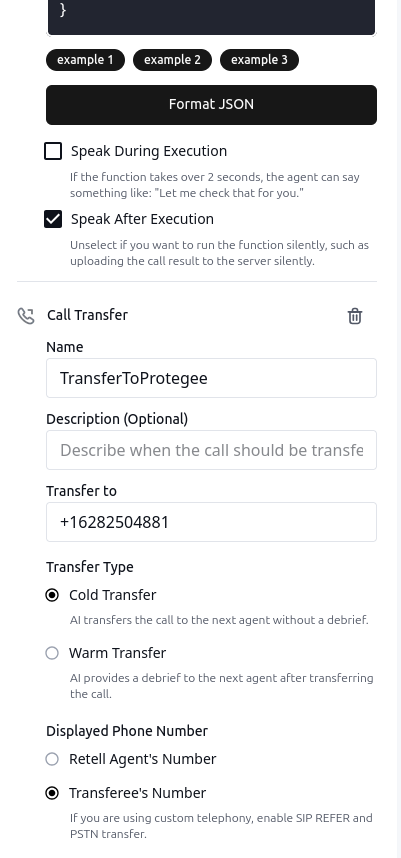
Lastly, make sure you also set the following:
 In your agent prompt, you'll want to update it so that it knows that when the time is ready, to call the tool and transfer the call to Protegee. You'll want something like:
```
...
5. Send the details to Protegee with the tool SendContextToProtegee, including all fields requested by SendContextToProtegee
6. Let the caller know you'll be transferring them to Protegee, the secure payments agent.
7. Transfer the caller to Protegee using TransferToProtegee.
...
```
If you have any issues, check out the [debug](https://protegee.ai/debug) page for more information.
### Checking on the status of the payment
The following instructions are OPTIONAL. If you specified a number in the `callback` field, [Protegee](https://protegee.ai) will transfer the caller back to this number once the payment process is complete. In order to continue the call, you'll want to make a webhook to get details on how the call went. The following are instructions on how to do that.
Similar to the instructions above, you are going to the instructions
In your agent prompt, you'll want to update it so that it knows that when the time is ready, to call the tool and transfer the call to Protegee. You'll want something like:
```
...
5. Send the details to Protegee with the tool SendContextToProtegee, including all fields requested by SendContextToProtegee
6. Let the caller know you'll be transferring them to Protegee, the secure payments agent.
7. Transfer the caller to Protegee using TransferToProtegee.
...
```
If you have any issues, check out the [debug](https://protegee.ai/debug) page for more information.
### Checking on the status of the payment
The following instructions are OPTIONAL. If you specified a number in the `callback` field, [Protegee](https://protegee.ai) will transfer the caller back to this number once the payment process is complete. In order to continue the call, you'll want to make a webhook to get details on how the call went. The following are instructions on how to do that.
Similar to the instructions above, you are going to the instructions
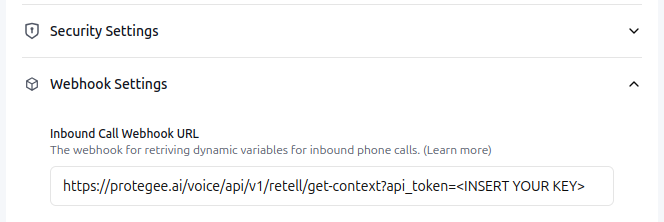 ```
https://protegee.ai/voice/api/v1/retell/get-context?api_token=
```
Update your agent to check the status of the webhook.
If you have any issues, check out the [debug](https://protegee.ai/debug) page for more information.
```
https://protegee.ai/voice/api/v1/retell/get-context?api_token=
```
Update your agent to check the status of the webhook.
If you have any issues, check out the [debug](https://protegee.ai/debug) page for more information.